Hi there. I have written about FreeDOS dozens of times in previous posts and installed it many times as well, especially in disk and file system posts. I never had a problem with it before.
Earlier this year, I formatted my disk and installed Fedora. Since its repos are up-to-date, I had the chance to install latest versions of programs, I am using. One of these programs is VirtualBox (VBox). I was using v5.x before and now v6.1.20 is currently installed. Its most recent version was v6.1.22 while I am writing this post. However, FreeDOS has crashed, while booting it in new VBox. I was even unable to see the prompt, and had to figure out a solution to this. First half of this article will be about this solution.
I wanted to set up a new VM for the upcoming FAT32 blog post. While creating the VM, I chose DOS as machine type. In fact, machine type is automatically set to DOS, in case VM name contains "DOS". I created a 4 GB disk to guarantee that the disk is formatted as FAT32 (>2GB). I mounted FD12CD.iso and as soon as I powered the VM up, I got this "Invalid Opcode" error which I mentioned:

This error actually occurs during the execution of HIMEMX.EXE. First, I entered step by step (trace) boot mode by pressing F8 during the boot and found the origin of the error. Then I reset the VM again and skipped the step where HIMEMX.EXE is loaded, but this caused another problem with installation because the text user interface of installation is also created with a .bat file. I simply lost myself in trace mode between the commands which creates the menu and waits for user input to continue.
Apparently, this is a known bug and was reported in 2018 first. I never encountered this problem before because I installed FreeDOS previously on the old version of VBox. By the way, the previous version, I was using, was definitely 5.x but I can't remember exactly. And although there is a major version difference between them, this problem is first reported in VBox v5.2.10.
Solution
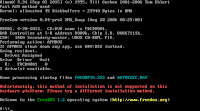 Frankly, I could not understand whether this bug is in FreeDOS or in VBox, because same FreeDOS boots in Vmware without any problem but on the other hand, it is announced in the bug ticket, that this bug will be solved in FreeDOS v1.3*. This problem has two different solutions: (1) booting the VM with FD12LGCY.iso instead of FD12CD.iso or (2) appending "raw" to the kernel parameters. Although I got a warning while booting legacy iso, I had no problem with the installation. The warning was: "Unfortunately, this method of installation is not supported on this hardware platform. Please try a different installation method." (screenshot above). I did not encounter any warning in vmware. Despite the above warning, I partitioned the disk first with fdisk when I landed to prompt, then rebooted the VM and started installation with setup command.
For the second option, I started the VM with FD12CD.iso and pressed Tab key at the "Welcome to FreeDOS 1.2" screen, appended "raw" with a leading space and started boot process by pressing Enter. This time, the installation wizard started automatically but since I needed to partition the disk first, I chose "Return to DOS" at step two and quit.
If partitioning is done by setup, it automatically creates 2x 2GB partitions. I do the partitioning manually to create a single partition. After seeing the prompt, I ran fdisk and answered the question about FAT32 support as "Yes" by pressing Y, I created a single 4 GB partition with 1, 1, Enter, Esc key combination and restarted the VM. Then, I selected "Erase and format drive C:" and "Full Installation" options in setup. Of course, setup command needs to be run first, in case the VM is booted with legacy CD. After installation is done, I removed CD and restarted the VM. Formatting disk manually isn't necessary, because for some unknown reason, the wizard formats the already formatted disk, anyway.
Earlier this year, I formatted my disk and installed Fedora. Since its repos are up-to-date, I had the chance to install latest versions of programs, I am using. One of these programs is VirtualBox (VBox). I was using v5.x before and now v6.1.20 is currently installed. Its most recent version was v6.1.22 while I am writing this post. However, FreeDOS has crashed, while booting it in new VBox. I was even unable to see the prompt, and had to figure out a solution to this. First half of this article will be about this solution.
I wanted to set up a new VM for the upcoming FAT32 blog post. While creating the VM, I chose DOS as machine type. In fact, machine type is automatically set to DOS, in case VM name contains "DOS". I created a 4 GB disk to guarantee that the disk is formatted as FAT32 (>2GB). I mounted FD12CD.iso and as soon as I powered the VM up, I got this "Invalid Opcode" error which I mentioned:

This error actually occurs during the execution of HIMEMX.EXE. First, I entered step by step (trace) boot mode by pressing F8 during the boot and found the origin of the error. Then I reset the VM again and skipped the step where HIMEMX.EXE is loaded, but this caused another problem with installation because the text user interface of installation is also created with a .bat file. I simply lost myself in trace mode between the commands which creates the menu and waits for user input to continue.
Apparently, this is a known bug and was reported in 2018 first. I never encountered this problem before because I installed FreeDOS previously on the old version of VBox. By the way, the previous version, I was using, was definitely 5.x but I can't remember exactly. And although there is a major version difference between them, this problem is first reported in VBox v5.2.10.
Solution
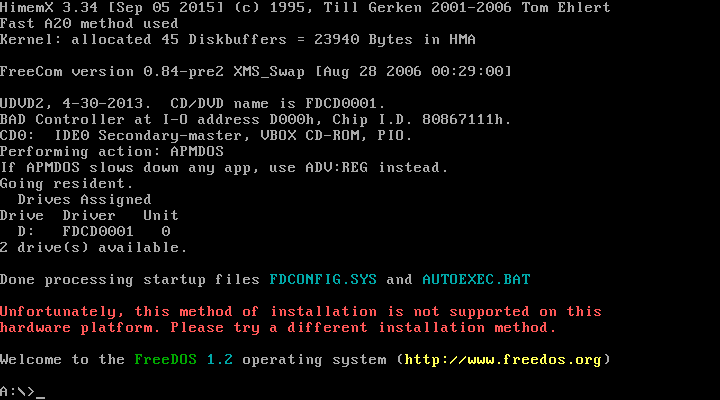
For the second option, I started the VM with FD12CD.iso and pressed Tab key at the "Welcome to FreeDOS 1.2" screen, appended "raw" with a leading space and started boot process by pressing Enter. This time, the installation wizard started automatically but since I needed to partition the disk first, I chose "Return to DOS" at step two and quit.
If partitioning is done by setup, it automatically creates 2x 2GB partitions. I do the partitioning manually to create a single partition. After seeing the prompt, I ran fdisk and answered the question about FAT32 support as "Yes" by pressing Y, I created a single 4 GB partition with 1, 1, Enter, Esc key combination and restarted the VM. Then, I selected "Erase and format drive C:" and "Full Installation" options in setup. Of course, setup command needs to be run first, in case the VM is booted with legacy CD. After installation is done, I removed CD and restarted the VM. Formatting disk manually isn't necessary, because for some unknown reason, the wizard formats the already formatted disk, anyway.
This is the solution of "Invalid opcode" problem.
* While I was writing this post, it was announced on FreeDOS mailing list that v1.3 RC4 will be released. The last time I checked, freedos.org was also updated.
Copying Files to FreeDOS VM
I encountered the second problem while trying to copy files to FreeDOS. Normally, I used to start the VM with Damn Small Linux (DSL) and copy files with SSH from host. I couldn't connect to DSL because some insecure SSH ciphers were disabled in new Fedora (supposedly).
First of all, there was a constraint in this problem: In VBox, host (hypervisor) can't access to NATted VMs (or maybe I failed) but NATted VMs can access to their host. In vmware, for each virtual network, a network card (NIC) is created on host and it is possible to reach every subnet using the IP address of corresponding NIC however this isn't possible in VBox NAT. When using DSL, I used to initiate SSH session from VM (or create a Host-only Network to connect in opposite direction). Now, if I want to do the same, I have to update the ciphers in DSL. Let's keep this aside.
On the other hand, I didn't mention it before, but FreeDOS actually comes with many network tools: NIC device driver, TCP/IP stack, ethtools (packet analyzer), mtcp (tools like dhcp, irc, ftp, netcat, sntp etc.) ve sshdos. Even though, I am not very hopeful, I thought maybe I could ssh from FreeDOS to Fedora. If I can, I can scp too. I attached FreeDOS CD (doesn't matter legacy or normal) to install the tools, I mentioned and run
fdimples
command. This opens the text interface of FreeDOS package manager. I browsed to "Networking" and selected fdnet, mtcp and sshdos packages (with Tab and spacebar). Even though, curl and wget can also be used for file tranfer, the files are not on the internet but on my disk and I don't want to install httpd to my computer. FreeDOS has also rsync, but it doesn't support ssh.


Solution
I cannot connect to the host via ssh and I cannot connect to the VM from host either. First, I have to change network settings to connect to VM from my host:
 |
| VM network settings |
At this step, I have three options:
1- Host-only Adapter: With this option, VM will be connected to a subnet in which the host also exists, but I skip this option as this network needs to be created first with VBox manager.
2- Bridged Adapter: With this one selected, VM will be connected to the physical subnet where the host is also connected. This is a hassle-free solution, but can be problematic in administered networks such as corporate networks. If there are more than one NIC on a machine, it is necessary to select the card which is connected to the network. Additionally, if this option is selected after NAT, running \FDOS\bin\fdnet.bat or restarting the VM is needed, to renew its IP.
3- NAT + Port Forwarding: When this option is enabled, a port is opened on the host and all packets are forwarded to VM through this port. To configure this, you should open Advanced options while NAT is selected and a free port number is given for each side on "Port Forwarding" window. Since DOS is running as guest OS, Guest port can be any port but it will be good to have a value greater than 1024 as Host port. Ports in use can be listed with netstat -tln command under linux (and it should be netstat -anl under windows). I set both ports to 1500.
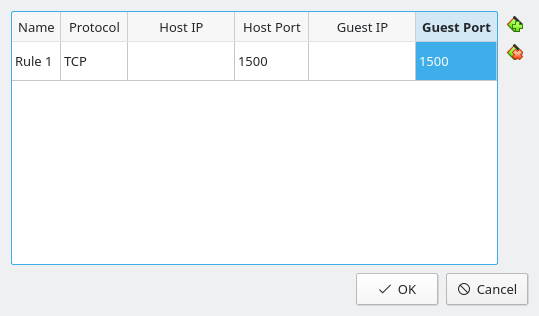
After changing network settings, I can connect to VM but how can I transfer the data? There is an FTP server in mtcp package but I would rather use netcat instead of configuring that FTP server. On Fedora, nc was already installed (from nmap-ncat package). On Windows, it is shipped with nmap portable. Although telnet is sufficient for testing connection between host and guest, nc must be installed for file transfer. First, I run
nc -listen 1500
in MTCP directory for testing. 1500 is the "Guest Port" value here (in case Guest Port and Host Port are not equal). Then I run following command on host (for NAT option):
nc localhost 1500
For "Bridged Adapter" option, hosts IP has to be given instead of "localhost". After that, typed characters on host must be exactly shown in VM after pressing Enter. I closed nc with Ctrl+D and gave following command on DOS for file transfer:
nc -bin -listen 1500 > FILEN.AME
and I transferred the file with following command
nc localhost 1500 < FILEN.AME
on linux. Now, I can check their integrity with md5sum command on both machines and verify that they are same files.
Alternate Solution (SSH)

If the "Guest Port" is different than 22, I have to change sshd configuration using sudo nano /etc/ssh/sshd_config, find the line starting with "Port", change it to the "Guest Port" value (e.g. Port 1500). Then I save the config file and apply the change with sudo /etc/init.d/ssh restart command. Therefore, setting "Guest Port" to 22 in NAT settings is pretty much easier.
Even though, machines can ping eachother, SSH is in both directions problematic. I cannot connect to host from DSL. Although I listed supported ciphers on my machine using ssh -Q ciphers command and gave them to ssh command as arguments of -c parameter, I still could not connect. For some algorithms, I got "Unknown cipher type" error which means that ssh on DSL doesn't support these algorithms. Fedora is of course more up-to-date than DSL. Instead of trying to install missing ciphers on DSL, it would be easier to fix the problem on Fedora (I suppose). I was hoping that, Fedora still supports outdated algorithms for backward compatibility even though it doesn't allow connecting with them. Btw, ssh client on DSL is old that it doesn't even support -Q parameter. Anyway, my first try:
[user@host ~]$ ssh -p 1500 dsl@localhost
Unable to negotiate with 127.0.0.1 port 1500: no matching key exchange method found. Their offer: diffie-hellman-group-exchange-sha1,diffie-hellman-group1-sha1
Unable to negotiate with 127.0.0.1 port 1500: no matching key exchange method found. Their offer: diffie-hellman-group-exchange-sha1,diffie-hellman-group1-sha1
Btw, the above command has to be like ssh dsl@<VM_IP> for "Bridged Adapter" configuration. DSL wants to use key exchange methods listed above, only. So, I entered it manually and tried again:
[user@host ~]$ ssh -oKexAlgorithms=+diffie-hellman-group1-sha1 -p 1500 dsl@localhost
Unable to negotiate with 127.0.0.1 port 1500: no matching cipher found. Their offer: aes128-cbc,3des-cbc,blowfish-cbc,cast128-cbc,arcfour,aes192-cbc,aes256-cbc,rijndael-cbc@lysator.liu.se
Unable to negotiate with 127.0.0.1 port 1500: no matching cipher found. Their offer: aes128-cbc,3des-cbc,blowfish-cbc,cast128-cbc,arcfour,aes192-cbc,aes256-cbc,rijndael-cbc@lysator.liu.se
Now, it wants that only these listed ciphers to be used for connection. So, I manually entered one of them and tried again:
[user@host ~]$ ssh -oKexAlgorithms=+diffie-hellman-group1-sha1 -c aes128-cbc -p 1500 dsl@localhost
The authenticity of host '[localhost]:1500 ([127.0.0.1]:1500)' can't be established.
RSA key fingerprint is SHA256:[SNIP].
Are you sure you want to continue connecting (yes/no/[fingerprint])? yes
[SNIP]
The authenticity of host '[localhost]:1500 ([127.0.0.1]:1500)' can't be established.
RSA key fingerprint is SHA256:[SNIP].
Are you sure you want to continue connecting (yes/no/[fingerprint])? yes
[SNIP]
It finally worked! In this case, I can copy the file with scp by passing same parameters to it but -p parameter of ssh corresponds to -P parameter of scp:
[user@host ~]$ scp -oKexAlgorithms=+diffie-hellman-group-exchange-sha1 -c aes128-cbc -P 1500 filen.ame dsl@localhost:~
dsl@localhost's password:
filen.ame 100% 543 530.9KB/s 00:00
dsl@localhost's password:
filen.ame 100% 543 530.9KB/s 00:00
Since I copied the file to the home directory of dsl user, I returned to DSL terminal and gave:
sudo su
mount /dev/hda1 /mnt
cp filen.ame /mnt
umount /mnt
mount /dev/hda1 /mnt
cp filen.ame /mnt
umount /mnt
commands to copy the file to the disk where FreeDOS in installed.
I came across another alternative solution on FreeDOS wiki: If the format of the virtual disk is .vhd (MS HyperV format) and if libguestfs-tools is installed, virtual disk can be mounted using guestmount command. However this package and its dependencies require 137 MB of space on Fedora. So, really not worth to install. On the other hand, Windows can open .vhd files like normal hard drives. Virtual disk files can also be converted with qemu-img command between vhd, vdi (VBox) and vmdk (vmware) formats but this would be the least preferable solution because it is over-complicated.
References:
(except the links within the text)
http://wiki.freedos.org/wiki/index.php/VirtualBox_-_Chapter_4
http://wiki.freedos.org/wiki/index.php/VirtualBox_-_Chapter_6
How to enable diffie-hellman-group1-sha1 key exchange on Debian 8.0?
